Methodox™ Image Editor

At the blink of an eye — with only 50 MB, Methodox™ Image Editor packs a lot of power in a self-contained package.

A layered editor for photographs, camera raw files and layered documents. Layers and masks, adjustments that stay editable, selections, painting, thirty-one file formats and colour management — in one program that opens before you have let go of the mouse.

46 MB on disk, 19 MB to download, and about two tenths of a second to start. Nothing to install alongside it: no runtime, no separate framework, no components to chase down. Windows today, with macOS and Linux built from the same source.

Neither store page exists yet. The Steam link is a placeholder and currently opens another Methodox product's page, not this one. What that means.

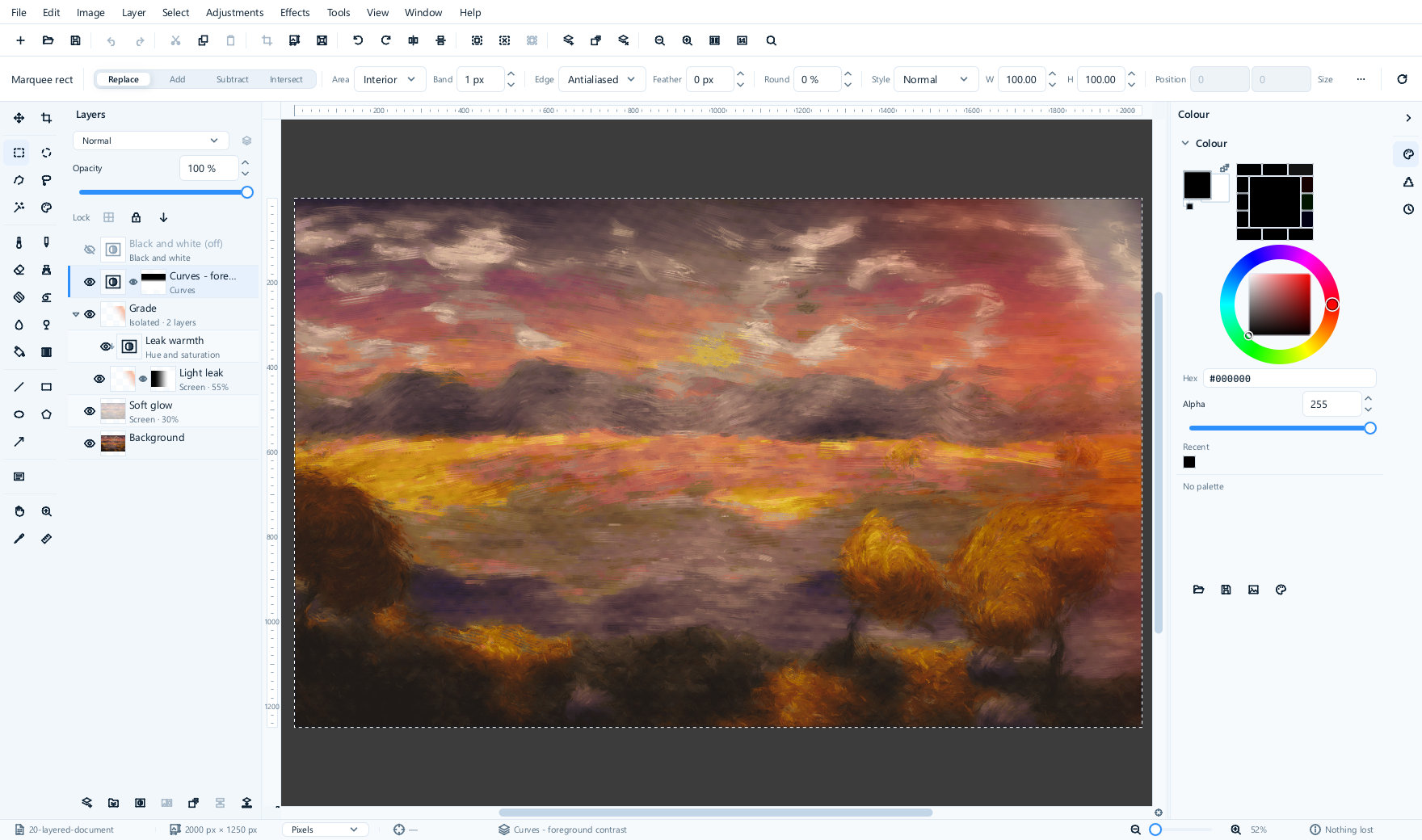
The Methodox Image Editor window. On the left, a layer stack holding a hidden black-and-white adjustment, a masked curves adjustment, a group called Grade containing a clipped hue-and-saturation adjustment and a masked light-leak layer set to Screen at 55 per cent, a soft-glow layer at Screen 30 per cent, and the background. In the middle, a painted sunset over autumn fields. On the right, the colour panel with its wheel.
A layered document open in the editor: one group, one clipping mask, two layer masks, three adjustment layers and two blend modes, all of them still editable.
  • 46 MBon disk, self-contained
  • 19 MBto download
  • 0.2 sto a window you can use
  • 31file formats: 30 read, 18 written
  • 125effects and adjustments
  • 3languages, and a fourth is a file

What it does

A full editor, not a viewer with filters bolted on

Everything below is in the program today. The user guide describes all of it in detail, and every picture on this page is a screenshot of the running editor.

Layers

Stack it, group it, mask it — and change your mind later

Layers, layer groups, layer masks, clipping and twenty blend modes. A mask hides part of a layer without deleting anything, a group carries its own blend mode and opacity, and a clipped layer is confined to the one beneath it.

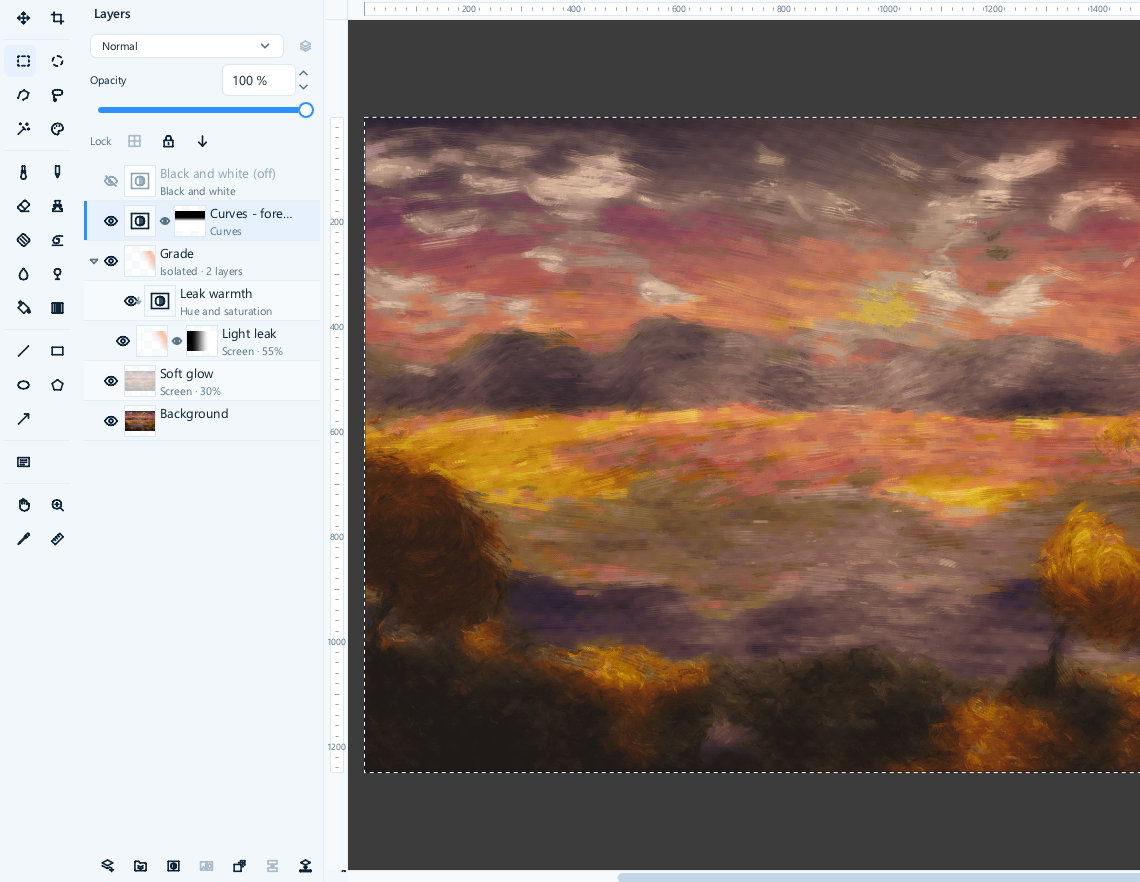
Adjustment layers are the reason to work this way. Twenty-nine of the corrections — an exposure, a curve, a hue and saturation, a black-and-white conversion — can sit in the stack as a layer of their own: reopen one and change the numbers, paint on its mask to limit where it lands, drop its opacity to fade it, or switch it off and see the picture underneath exactly as it was. Nothing is baked in until you export, and the editor's own .mie file brings the whole stack back the next morning.

  • Groups
  • Layer masks
  • Clipping
  • 20 blend modes
  • Per-layer opacity
  • 29 kinds of adjustment layer

Close-up of the layers panel. From the top: a greyed-out hidden Black and white adjustment, a selected Curves adjustment with a black-and-white mask thumbnail, a group named Grade marked Isolated with two layers, a Leak warmth hue-and-saturation adjustment clipped to the layer below it, a Light leak layer set to Screen at 55 per cent with a mask, a Soft glow layer at Screen 30 per cent, and the Background layer.
Seven layers, and every control in the panel appears exactly once.

Selections

Choose the part you actually meant

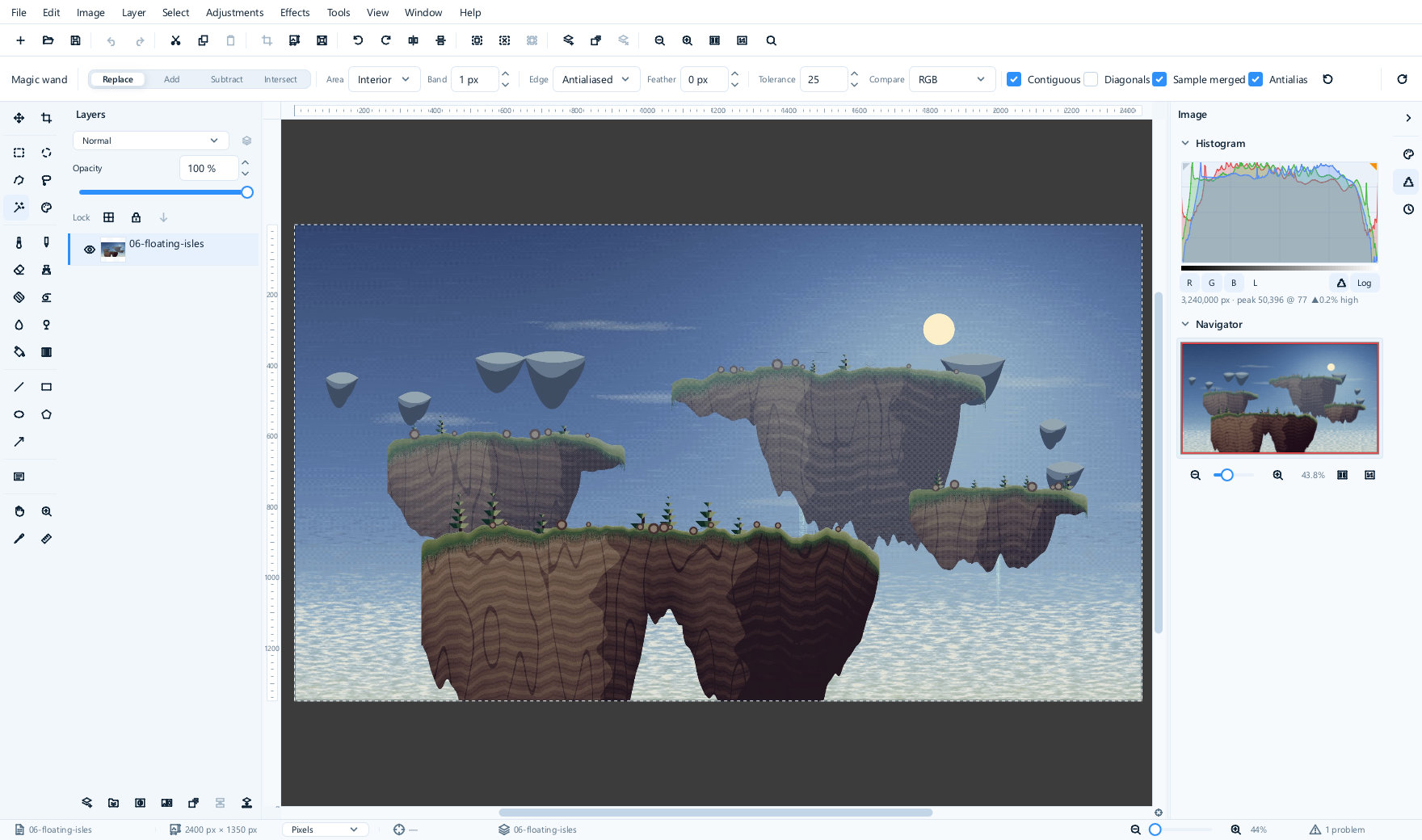
A rectangular or elliptical marquee, a free lasso, a polygon, a magic wand and a select-by-colour. Each of them adds to, subtracts from or intersects what is already selected, and each can be feathered, antialiased or grown by a band before it is used.

A selection then limits everything else: paint inside it, apply an adjustment through it, turn it into a layer mask, or invert it and delete the background.

  • Marquee
  • Lasso
  • Polygon
  • Magic wand
  • By colour
  • Feather and antialias
The editor with the magic wand chosen. Its options bar shows Replace, Add, Subtract and Intersect modes, an area and band setting, an antialiased edge, a feather, a tolerance of 25, an RGB comparison and tick boxes for contiguous, diagonals, sample merged and antialias. The picture is a set of dark islands floating above a cloud sea, and the histogram and navigator panels are open on the right.
The magic wand, with its tolerance and edge settings in the options bar.

Painting and retouching

Put paint on, and take blemishes off

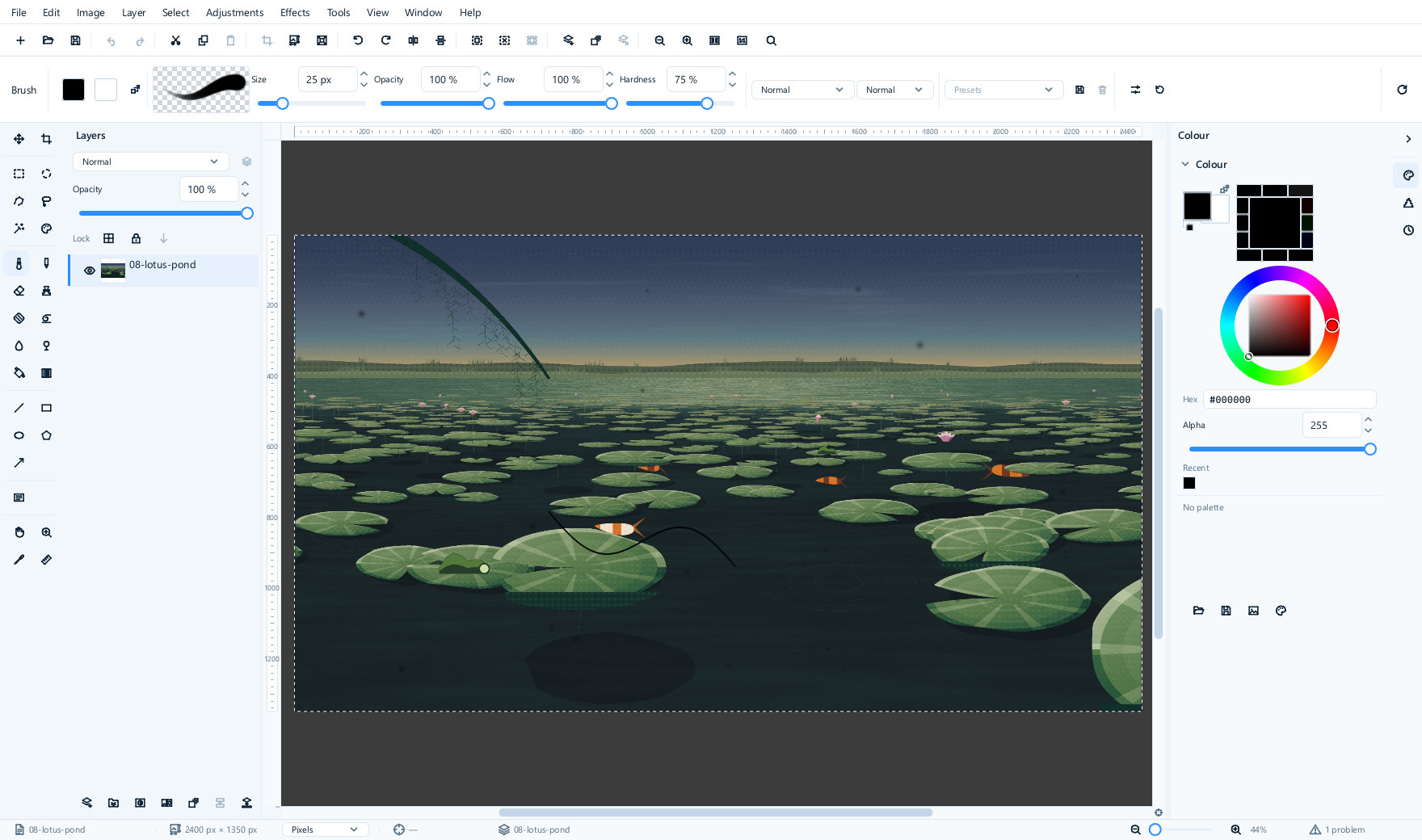
A brush and a pencil with size, opacity, flow and hardness, and twenty-eight blend modes of their own. An eraser, a fill, gradients in five shapes — linear, reflected, radial, spherical and conical — a smudge, a blur-and-sharpen and a dodge-and-burn for local tone.

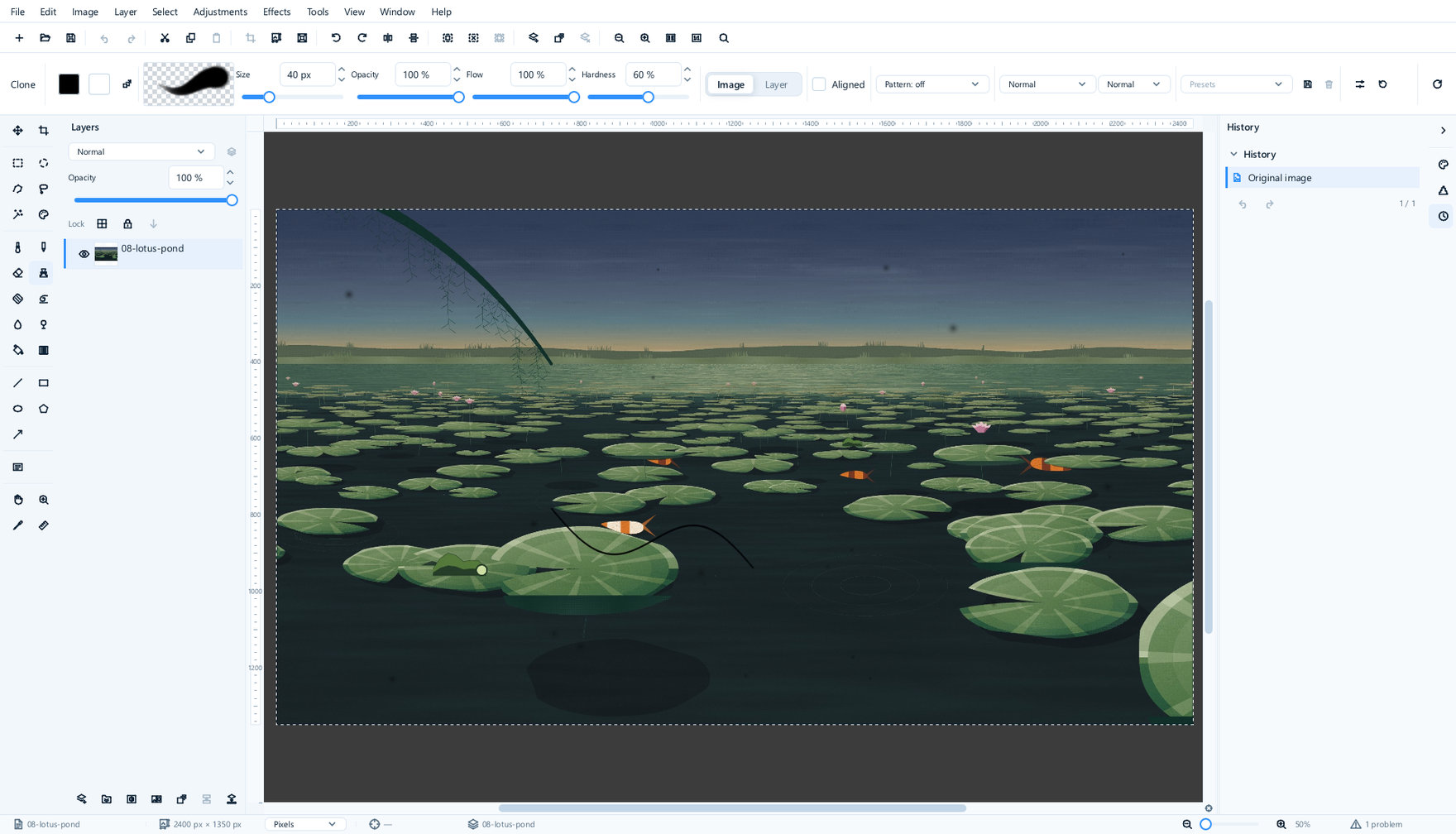
The clone stamp copies from one part of a picture to another, aligned or not, sampling the layer or the whole image; the healing brush borrows the surrounding texture instead of the surrounding pixels, which is what you want for dust and a stray hair.

  • Brush and pencil
  • 28 brush blend modes
  • Clone stamp
  • Healing brush
  • Dodge and burn
  • Gradients
The editor with the brush chosen. The options bar shows a stroke preview, a 25 pixel size, full opacity and flow, 75 per cent hardness and two blend mode menus. The picture is a lotus pond at dusk.
The brush.
The same lotus pond with the clone stamp chosen. Its options bar adds a source choice of Image or Layer, an Aligned tick box and a pattern menu, and the history panel is open on the right.
The clone stamp.

Text and shapes

Words that stay words

Text is a layer you can go back and retype, restyle or re-size — family, weight, slant, alignment, line spacing and letter spacing, with word wrap inside a box you drag. Lines, rectangles, ellipses, polygons and arrows are vector shapes that scale without going soft.

Both stay editable until you decide otherwise, which means a caption can be corrected the week after it was set.

  • Editable text
  • Word wrap
  • Line and letter spacing
  • Vector shapes
  • Arrows
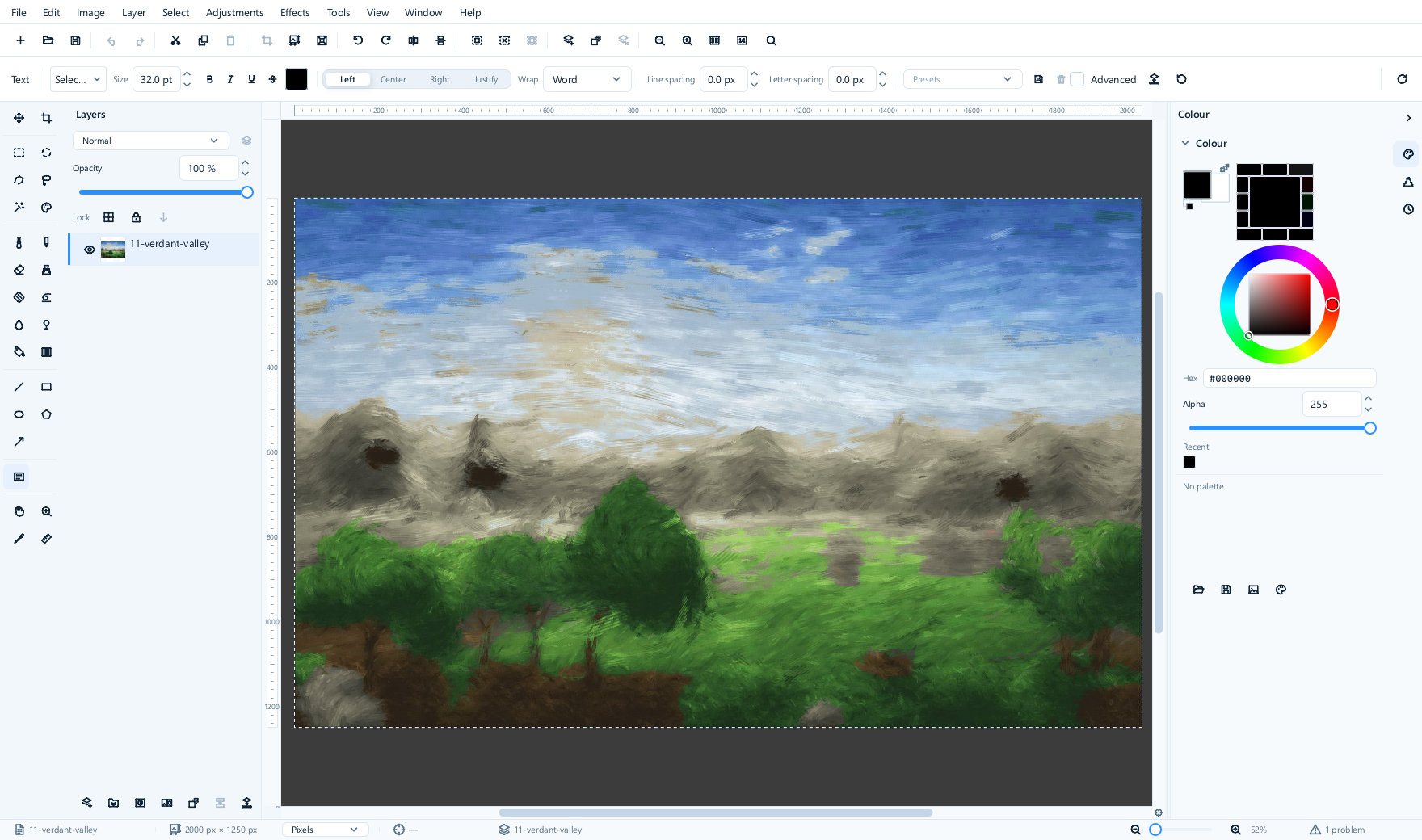
The editor with the text tool chosen. Its options bar shows a font family menu, a 32 point size, bold, italic, underline and strikethrough buttons, a colour swatch, left, centre, right and justify alignment, word wrap, line spacing and letter spacing. The picture is a green valley under a bright sky.
The text tool and its options.

File formats

Thirty-one formats, and your camera's raw file among them

Thirty-one formats, of which thirty open and eighteen are written. JPEG, PNG, TIFF, GIF, BMP, WebP, PSD, OpenEXR, QOI and Targa go both ways; AVIF, HEIF, JPEG 2000, SVG, XCF and camera raw files straight off a sensor are read; PDF is written. Camera raw covers twenty-three vendors' formats between them.

The editor's own .mie is the one that keeps everything — layers, masks, editable text, the adjustment layers, the selection and the metadata — because it is the only format that can. Save your working file as .mie, and export a copy in whatever the person you are sending it to can open.

  • PSD
  • Camera raw
  • AVIF
  • WebP
  • TIFF
  • OpenEXR
  • OpenRaster
  • 30 read
  • 18 written
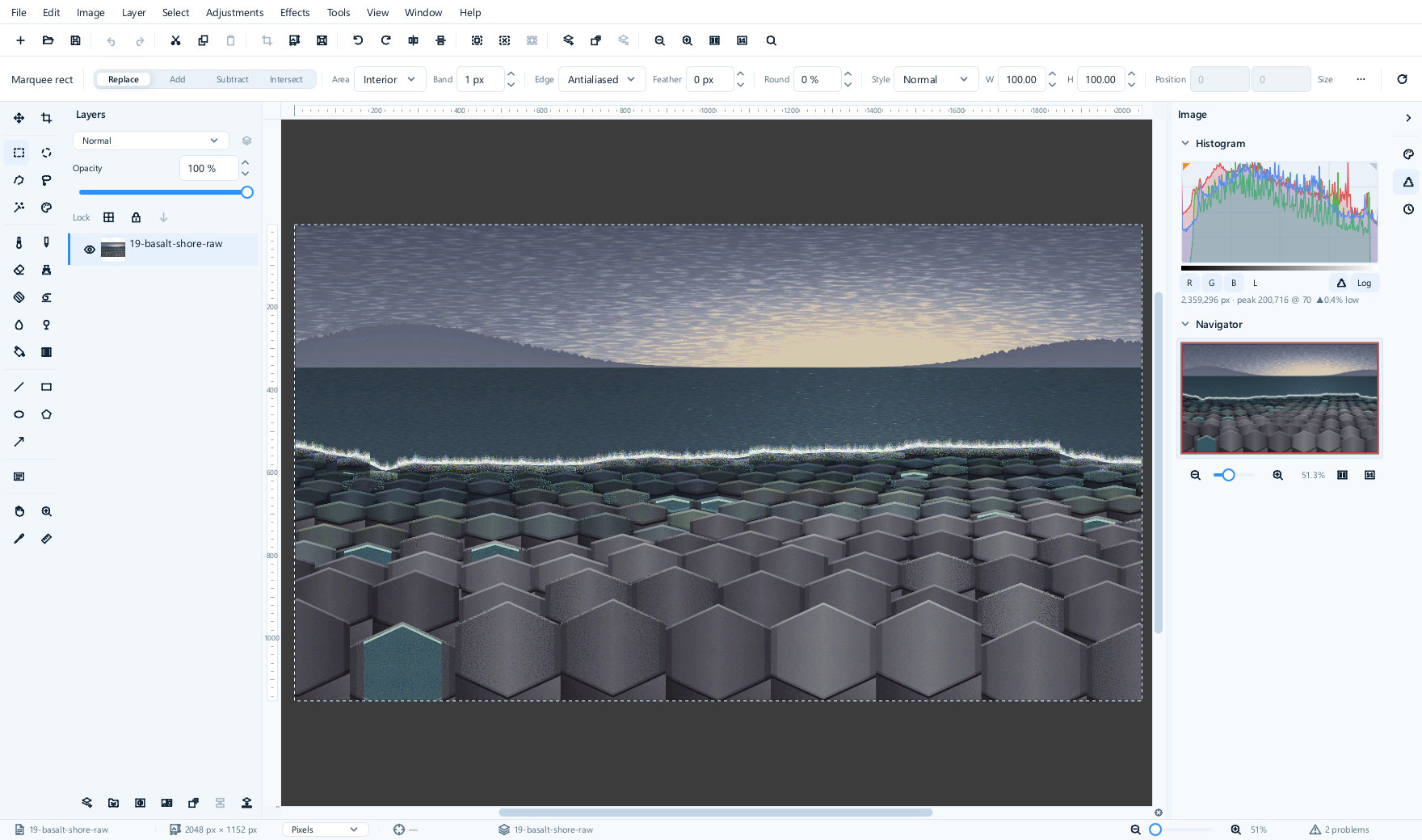
A camera raw file open in the editor, showing a shore of hexagonal basalt columns under a pale dawn sky. The histogram panel on the right reports 2,359,296 pixels with a peak of 200,716 at level 70, and the status bar names the file as 2048 by 1152 pixels.
A raw file, developed on opening and ready to edit.

Colour management

Colour that survives the trip

ICC profiles are read, honoured and converted. A file tagged Adobe RGB is brought into the working space on the way in and the editor tells you it did so, in those words; an untagged file is read as sRGB and it tells you that too, so a colour shift is never something you find out about later.

You choose the working space. The histogram, the colour picker and every adjustment work in it.

  • ICC profiles
  • Working spaces
  • Profile conversion
  • Rendering intents
  • Black point compensation
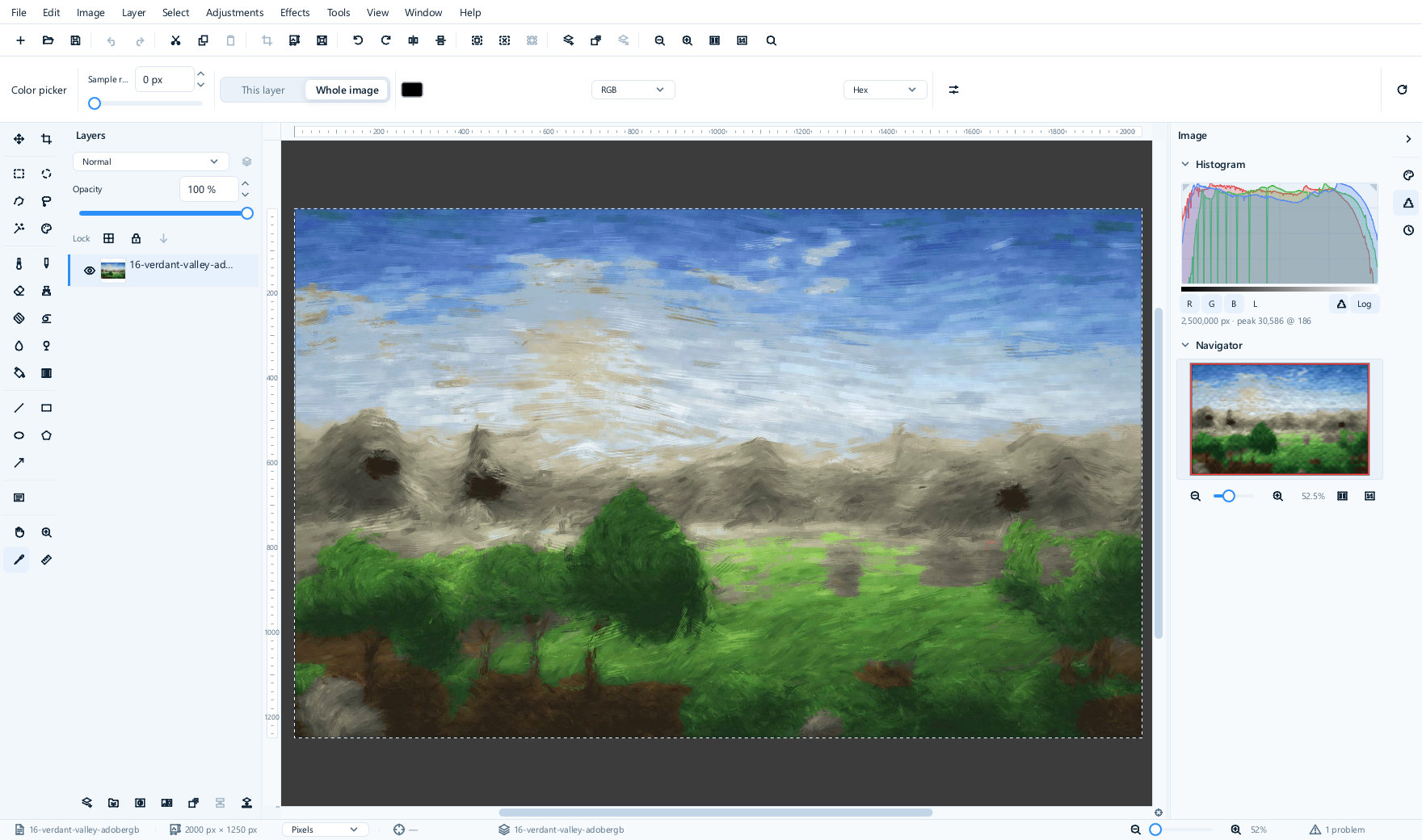
An Adobe RGB picture of a green valley open in the editor with the colour picker chosen. The histogram panel on the right shows the fine comb pattern left by the conversion into the working space, and the status bar reports one notice about the file's colour profile.
An Adobe RGB file converted into the working space on opening.

Effects and adjustments

A hundred and twenty-five ways to change a picture

Forty adjustments and eighty-five effects, counted rather than estimated. The adjustments are the corrections you would reach for first — and twenty-nine of them can go into the stack as an adjustment layer instead of being applied to the pixels. The effects run from the ordinary to the strange. A macro records a sequence of any of them, and batch processing runs the recording over a folder.

  • Levels
  • Curves
  • Exposure
  • Gamma
  • White balance
  • Hue and saturation
  • Vibrance
  • Black and white
  • Shadows and highlights
  • Brightness and contrast
  • Color balance
  • Channel mixer
  • Photo filter
  • Split toning
  • Gradient map
  • Selective color
  • Threshold
  • Dehaze
  • Sepia
  • Gaussian blur
  • Motion blur
  • Radial blur
  • Zoom blur
  • Surface blur
  • Unsharp mask
  • Median
  • Dust and scratches
  • Add film grain
  • Emboss
  • Find edges
  • Oil painting
  • Colored pencil
  • Stained glass
  • Kaleidoscope
  • Swirl
  • Ripple
  • Waves
  • Crystallize
  • Mosaic
  • Solarize
  • Vignetting
  • Clouds
  • Perspective
  • Spherize
  • … and eighty-one more
Macros and batch processing. Record what you did to one picture, then run it over a folder of them. The recording is a file you can keep, edit and hand to somebody else.

Languages

Three languages built in, and a fourth is a file

English, Simplified Chinese and Japanese ship with the program and are chosen from a menu. There is nothing special about those three: every language is a plain text file beside the program, so adding one is a translation, not a new version and not a conversation with us.

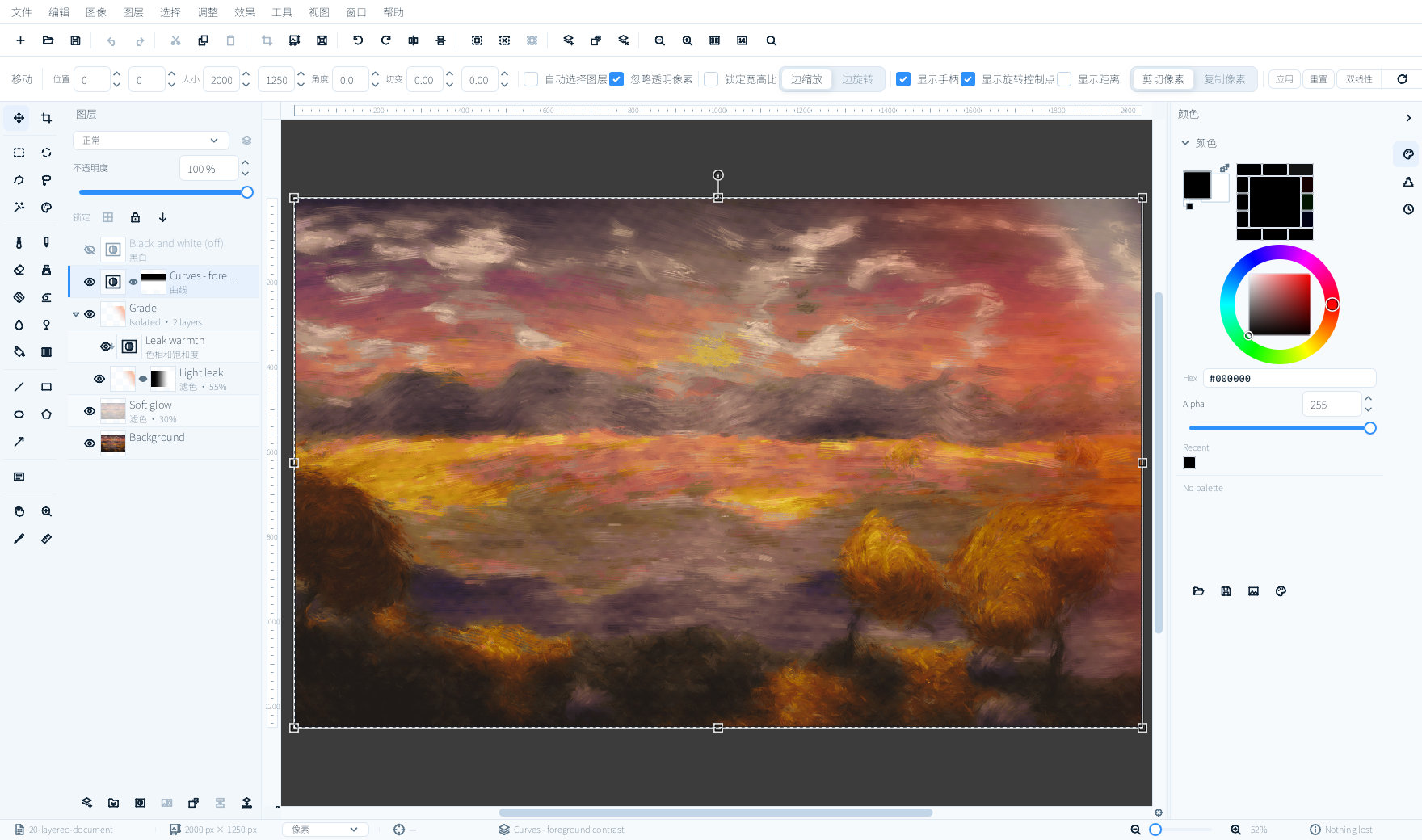
The whole editor window running in Simplified Chinese: the menu bar, the tool options bar, the layers panel and the colour panel are all in Chinese, with the same layered sunset document open.
The same window, running in Simplified Chinese.

Get it

On its way to the stores

Neither store page is live yet. The links below are the ones the program will be sold through when it is published, and they are here so you can find them on the day; today they will not take you to anything you can buy.

itch.io Coming soon

Where the first public build will land. The page is not published yet.

methodox.itch.io →

Steam Coming soon

A Steam release is planned, but the store page does not exist yet. The link below is a placeholder and today it opens the page for Fantasy Planet Painter, a different Methodox product.

Steam store →

The user guide

Every tool, every panel and every format, written out in full. Free to read now.

Read the guide →
What you will be downloading. A 19 MB archive that unpacks to about 46 MB. There is no installer to run and nothing to install beside it: unpack it, start it, and it is running in about two tenths of a second. Windows builds are ready; macOS and Linux are built from the same source.